Guide
WooCommerce pre-orders with a cutoff date and a release date
A lot of pre-orders work in batches: you take orders until a certain day, then everything ships together on a later day. WooCommerce has no setting for that, and most pre-order plugins only give you one date. Here's how to set up both.
Why one date isn't enough
A single "available on" date answers one question: when can the customer have it. A batch pre-order needs two answers. When do you stop taking orders, so you can place the order with your supplier or printer? And when does the product actually ship?
If you only have one date, you end up closing the product by hand on the cutoff day, or writing the ship date in the product description and hoping people read it. Both break the moment you run more than one pre-order at a time.
| Date | What it controls |
|---|---|
| Cutoff | The last moment the product can be bought. After it, the store stops selling it. |
| Release | When it ships. Shown to the customer before and after they buy, and the point where the product goes back to normal. |
Set it up
This uses Bitnary Preorder Dates for WooCommerce, a free plugin I built for exactly this. It needs WooCommerce 9 or newer.
- In your WordPress admin, go to Plugins, Add New, search for "Bitnary Preorder Dates" and install it.
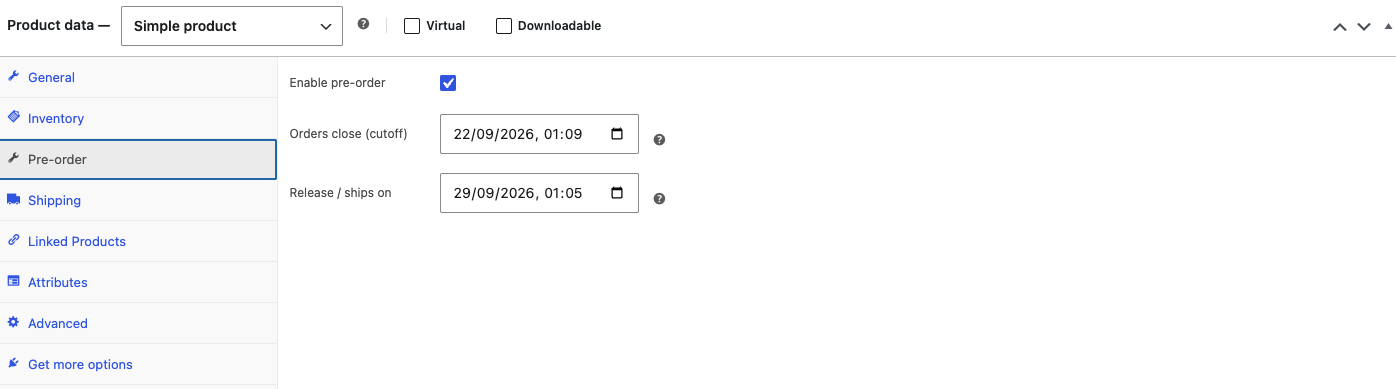
- Edit the product you want to sell on pre-order and open the Pre-order tab in the Product data box.
- Tick Enable pre-order.
- Set Orders close (cutoff) and Release / ships on. Both use your store's timezone, from Settings, General.
- Click Update.
If you sell the same item in sizes or colors, you can put a single variation on pre-order and leave the rest in stock. See pre-order one variation in WooCommerce.
What happens on each date
Before the cutoff
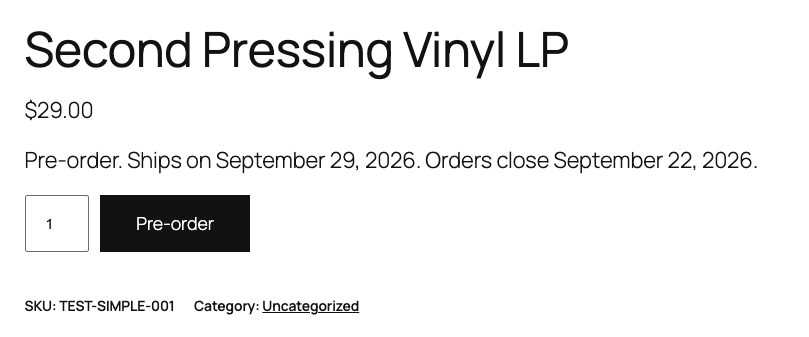
The product can be bought even if it has zero stock or backorders turned off. The product page and shop listing show a pre-order label with both dates, and the button says "Pre-order" instead of "Add to cart".
The ship date shows under the item in the cart and at checkout, including the block-based cart and checkout, and it's saved on the order, so it appears in the order screen and in WooCommerce's order emails.

After the cutoff
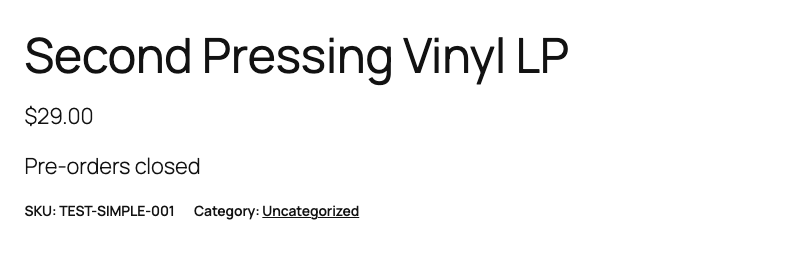
The product can't be bought anymore: not from the product page, not from the shop's add-to-cart buttons and not from the cart and checkout blocks. The page shows a "Pre-orders closed" message instead. Orders already placed aren't touched.
After the release date
Pre-order switches itself off and the dates are cleared. From then on the product follows your normal stock settings again, so if you've restocked it, it simply goes back on sale. You don't need to remember to do anything.
Change the wording
Under WooCommerce, Settings, Products, Pre-order dates you can change the label, the button
text, the closed message and the date format. The label accepts {release_date} and
{cutoff_date}, for example: Pre-order. Ships on {release_date}. Orders close {cutoff_date}.
Keep track of open pre-orders
The Pre-orders screen under the WooCommerce menu lists everything that's taking orders and everything that's closed and waiting to ship, ordered by whichever date comes next. It's the quickest way to see which batch you need to order from your supplier this week.
What this doesn't cover
The free plugin doesn't take deposits, doesn't run a waitlist and won't split a cart that mixes pre-order and in-stock items into two orders. If you need deposits, pair it with a deposits plugin.
The plugin is free on WordPress.org, and everything above is in the free version.
Get it on WordPress.org